Burp interception for localhost application with FoxyProxy
12 Dec 2019Explanation
To use Burp interception just for the localhost application, install browser extension “FoxyProxy”
This time, “FoxyProxy” was used for OWASP Juice Shop on the localhost:3000.
Environment
- OS: Kali linux 2019.4
- Burp Suite: Burp Suite Community Edition v2.1.04
- Browser: Google Chrome 78.0.3904.108 (Official Build) (64-bit)
- FoxyProxy: FoxyProxy Standard 3.0.7.1
Solution
1. Installing FoxyProxy
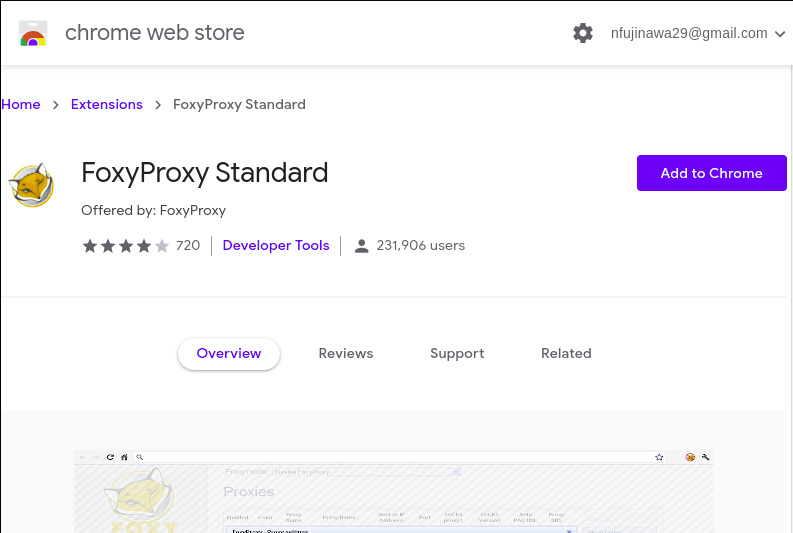
At first, go to the Chrome webstore and install Chrome extension FoxyProxy.
2. Launch Burp Suite
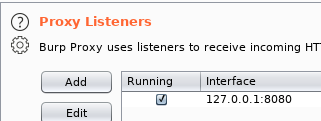
Next, launch Burp Suite.
This time, default setting (IP: 127.0.0.1, port: 8080) was used.
3. Edit “/etc/hosts”
Add following line to the “/etc/hosts” to give an additional name “juice-shop” for localhost.
(We can’t use the name “localhost” for this purpose.)
127.0.0.1 juice-shop4. Setup FoxyProxy
Then, open the extension icon on the right of Chrome header and select “options”
Click “add New Proxy” and open the “Proxy settings” window.
Go to “Proxy Details” and set configuration for running Burp Suite.
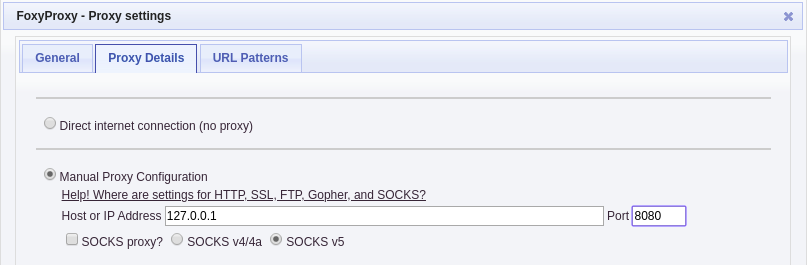
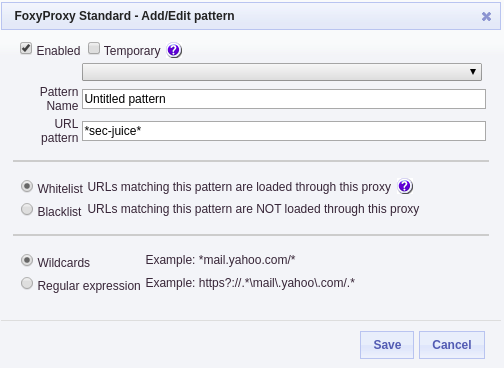
Next, go to “URL Patterns” and “Add new pattern”.
We can use Wildcard for the domain name for the proxy.
Finally, go to top page of FoxyProxy configuration and enable the proxy configuration.
Choose “Use proxies based on their pre-defined patterns and priorities” as Proxy mode.

5. Check the configuration with Burp Suite.
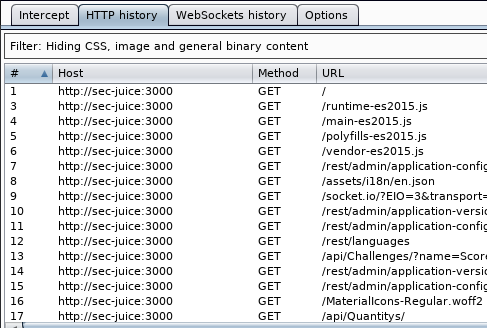
Access “http://sec-juice:3000” with Google Chrome and take a look at “HTTP history” tab on Burp Suite.
We can confirm that we can analyze the traffic to localhost.